#software-architecture #react #browser-navigation #css-architecture #rendering-behavior #cross-platform-engineering #debugging #encapsulation #state-management #git-workflows #frontend-engineering #web-development #javascript #typescript #ui-engineering
The Hidden Contracts Behind Working Software
2026-08-09 · 56 min read
Introduction
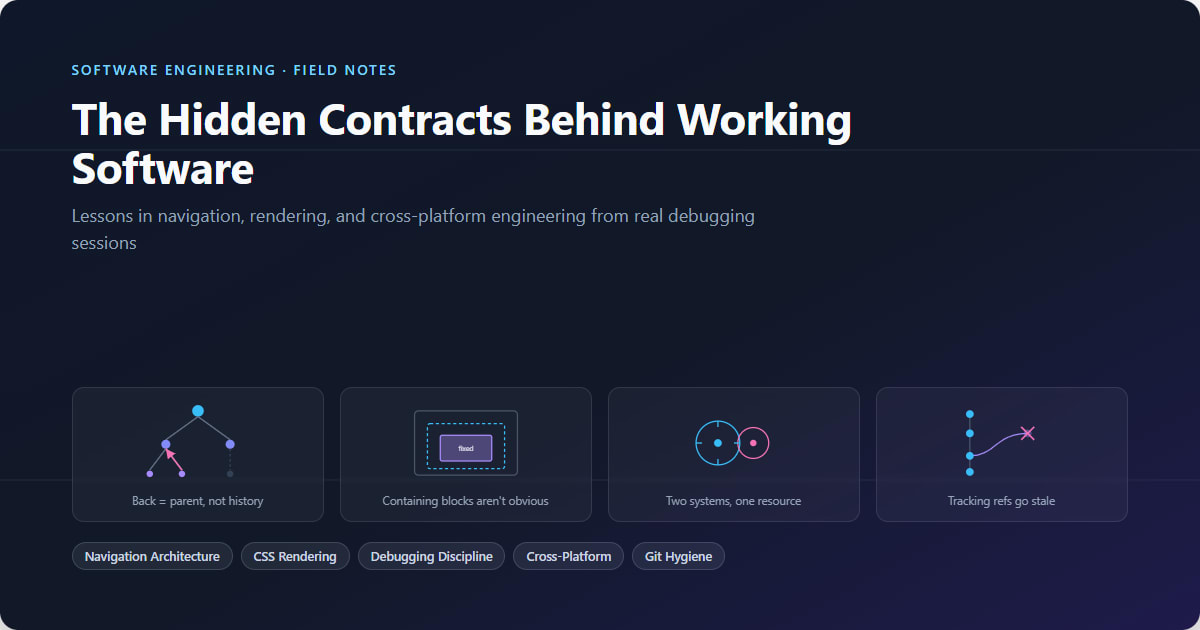
Most of the hardest bugs in software have nothing to do with typos or missing semicolons. They come from invisible agreements — assumptions two pieces of code make about each other without ever writing those assumptions down. The browser assumes your app's "back" button means "go where the user physically came from." A CSS transform assumes it's fine to quietly redefine what "the corner of the screen" means for everything inside it. Two independent UI libraries each assume they're the only one locking the page's scroll.
None of these assumptions are documented anywhere. They just are, until the moment they collide, and then you have a bug report that sounds simple ("back button goes to the wrong page") but is actually a symptom of a much deeper design question: when two systems interact, who owns the contract between them, and is it explicit or accidental?
This article extracts the durable engineering lessons from a series of real debugging and architecture sessions on a React-based web dashboard — navigation history bugs, a PDF viewer that broke on specific devices, timing-sensitive rendering glitches, and everyday git hygiene. The framework and stack are incidental. The lessons are not. Every term is explained in plain language the first time it appears, so no prior experience is assumed.
1. When Browser History Doesn't Match Your App's Mental Model
What it is
A web browser keeps a history stack — think of it like a spike of paper receipts on a cashier's counter. Every time you visit a new page, a receipt gets stamped and dropped on top. Press "back," and the browser just lifts the top receipt off and shows you whatever's stamped on the one underneath. It has no idea what your app's pages mean to each other — it only knows the literal order you visited them in.
Most of the time this works fine, because the order you visit pages in matches the logical structure of your app. But in any app with dashboards, drill-downs, or multiple entry points into the same screen, that assumption quietly breaks.
Why it becomes a problem
Imagine an app structured like a tree: a home dashboard at the root, with branches like "Reports" and "Messages," each with their own sub-pages. Logically, if you're three levels deep in "Reports," pressing back should take you up one level — to the immediate parent. That's the mental model every user has, because it matches folders, menus, and every app they've used before.
But the browser's history stack doesn't know about that tree. It only knows the literal sequence of clicks. If a user opened a "details" page, drilled into a sub-item, hit an "Exit" button that jumped them back to "details," and then pressed the physical back button, the browser doesn't replay your app's logical tree — it replays the literal stack of receipts, which might now point straight back at the sub-item they just exited. The user's mental model says "go up." The browser's literal history says "go back to whatever you technically clicked last." Those two things can diverge the moment your app has more than one way to reach a page, or uses buttons that jump around instead of always moving strictly forward.
This is a special case of a much bigger idea in software: implicit state versus explicit state. The browser's history stack is implicit — it accumulates automatically as a side effect of navigation, and nobody explicitly designed its shape. The moment your product requirements say "back should always go here," you are asking for explicit, designed behavior from a system that only offers implicit, accidental behavior. Whenever a bug report sounds like "the app went to the wrong place," ask whether you're relying on an implicit side effect to do a job that needs an explicit rule.
Common beginner mistakes
- Assuming history = hierarchy. It's tempting to think "the user came from there, so back should go there" — but "where the user came from" and "where the user should logically go" are only the same thing in a strictly linear app. The moment you add shortcuts, redirects, or multiple entry points, they diverge.
- Patching symptoms one screen at a time. The natural first instinct on seeing "back goes to the wrong page from screen X" is to fix screen X specifically — usually by changing whether a navigation action pushes a new history entry (adds a fresh receipt) or replaces the current one (swaps the top receipt without adding a new one). This works for the one reported case but doesn't generalize, and worse, it's easy to apply the same "fix" to a screen where it doesn't actually apply, silently breaking navigation that was working correctly. That exact mistake happened during this project: a push→replace fix pattern that was correct for a screen with a matching "Exit" button was mistakenly copied onto a different entry point that had no matching exit action — and it silently overwrote a shared parent screen's history entry, breaking back-navigation app-wide until it was caught. The lesson isn't "don't fix bugs where you find them" — it's that a fix which depends on unstated preconditions (e.g., "this screen has a specific exit button downstream") needs those preconditions written down and checked, not assumed to hold everywhere the pattern looks similar.
- Not distinguishing the three kinds of navigation. Most routing systems expose three flavors: a fresh forward move (push), a swap of the current entry (replace), and the browser/gesture back action itself (usually called "pop," since it pops an entry off the stack). Treating all three as "just navigation" makes it impossible to reason precisely about what the history stack will look like afterward.
Better engineering approach
The fix that actually held up was to stop treating browser history as the source of truth at all. Instead: model the entire app as an explicit tree, with every real screen assigned exactly one parent — the screen "back" should always lead to, no matter how the user technically arrived. Then, instead of scattering navigation-direction decisions (push vs. replace) across every button in every file, install a single, centralized guard that watches for the moment the user actually presses back (browser button or a swipe/gesture), looks up the current screen's designated parent in the tree, and — if the browser's literal history disagrees — silently corrects the destination to match the tree.
This is a specific instance of a general and very reusable principle: when a behavior needs to be consistent across an entire application, put the decision in exactly one place, not in every call site that could trigger it. Before this fix, "what does back do" was a decision re-made independently on dozens of buttons across dozens of files, using push-vs-replace as an ad hoc signal. After the fix, "what does back do" is answered by one small lookup table and one small piece of code that everything else defers to. The scattered version can drift out of sync with itself (as it briefly did); the centralized version cannot, because there's only one copy of the logic to keep correct.
A second useful technique here: for the rare screen reachable from multiple different parents (for example, a message thread you can open from four different pages), a fixed tree entry can't express "go back to wherever you actually came from this time." The answer is to let the caller attach that one specific piece of context onto the navigation itself — a small note riding along with the navigation saying "if you need to back out of this, here's the specific origin, not the usual default." This is a general pattern: when a global rule (the static parent tree) doesn't cover a specific case, don't try to make the global rule more complicated — let the specific case carry its own override as local state.
How to recognize it early
- If you find yourself asking "does this navigation need
replaceor normal push?" on a case-by-case basis for more than two or three screens, that's a sign the direction logic belongs in one central place instead. - Whenever you add a new "Exit," "Cancel," or "Done" button, ask: if the user instead pressed physical back/gesture-back at this exact moment, would they land somewhere different than this button takes them? If yes, you have two competing definitions of "back" that will eventually disagree.
- Draw the screen flow as an actual tree diagram before writing navigation code for any app with more than a handful of screens. If you can't easily draw one parent per screen, that's worth resolving on paper before it becomes a bug report.
Broader lesson
Any time your app's requirements describe a structure ("this should always lead back to that"), don't rely on a mechanism that only tracks history (an accidental sequence of events). Structure needs an explicit model — a table, a tree, a state machine — that the rest of the app defers to, not an emergent side effect of how users happened to click around.
2. Cross-Cutting Concerns Need Explicit, Shared Contracts
What it is
A "cross-cutting concern" is any piece of behavior that isn't the responsibility of one single component, but instead needs to work consistently across many unrelated ones — logging, scroll position memory, authentication checks, and (as above) navigation direction are classic examples. The tricky part isn't implementing any one of these individually; it's making sure two independent cross-cutting systems, each reasonably designed on its own, don't quietly step on each other.
Why it becomes a problem
In this project, a component responsible for remembering and restoring scroll position (call it the scroll manager) made a completely reasonable assumption: "if the browser reports this navigation as a literal back-press (pop), restore the saved scroll position; for anything else, assume it's a fresh page and scroll to the top." That's a sound rule — in isolation.
Separately, the navigation guard from Section 1 was implemented using a replace navigation to silently correct the browser's wrong guess about where "back" should go. That's also a sound implementation choice — in isolation.
Put them together, and a bug appears that neither component's author would predict just by reading their own code: every time the guard corrects a back-navigation, it does so with a replace, which the scroll manager doesn't recognize as a "back-like" navigation — so it resets scroll to the top, even though the user is conceptually going back to a page they'd previously scrolled down on. Each system is internally correct. The bug lives entirely in the gap between them — an assumption ("pop always means literal back") that was true when the scroll manager was written, and silently stopped being true once a second system started using replace to simulate a back-navigation.
Common beginner mistakes
- Assuming correctness is only local. It's natural to review a component, confirm it does what its own job description says, and move on. But cross-cutting concerns are exactly the case where local correctness doesn't imply system correctness — you have to ask "what does this component believe about the rest of the system, and is that belief still true?"
- Fixing the symptom in the wrong place. A tempting fix here would be to hack the scroll manager to also treat this specific replace as special — but without a real signal, it'd have to guess, using something fragile like "was the URL the same shape as the previous one?" That kind of guessing is exactly what causes these bugs in the first place.
- Not realizing two features are actually coupled. Before this bug, "scroll restoration" and "back-navigation correction" looked like two unrelated features living in two unrelated files. The bug only reveals itself when you understand they're both reacting to the same underlying event (the user pressing back) through two different signals (the router's official navigation-type flag vs. whatever each component infers from it).
Better engineering approach
The fix was to make the implicit shared assumption explicit: the navigation guard now attaches a small, deliberate marker to its corrective navigation — a flag meaning, in effect, "I know this technically looks like a replace, but treat it as a back-navigation for restoration purposes." The scroll manager was updated to check for that marker in addition to the browser's own navigation-type flag.
This is the general fix pattern for cross-cutting concern conflicts: when two independent systems need to agree on the meaning of an event, don't let one infer the other's intent — have the first system explicitly declare it, and have the second system read that declaration. A guessed signal (inferring intent from incidental properties like URL shape) is brittle and breaks the next time either system changes internally. A declared signal (an explicit flag both sides agree on) is a contract — as long as both sides honor it, the systems can evolve independently without breaking each other.
How to recognize it early
- Whenever you add a component that reacts to a type of event (like "was this a back-navigation?"), ask what other parts of the app might also care about that same event, and whether they're all using the same signal to detect it.
- If a new feature works by simulating another kind of action (here: simulating "back" using "replace"), explicitly check every other place in the codebase that distinguishes actions by that same category — those are exactly the places your simulation might slip through unnoticed.
- A good habit during code review: for any state, flag, or event type introduced by a new component, grep the codebase for every existing place that reads the same underlying signal it depends on, and check each one is still correct.
Broader lesson
Independent correctness doesn't add up to system correctness. Wherever two components silently share an assumption about an event, a URL, or a piece of state, that assumption should be turned into an explicit, named contract — a flag, a shape, a documented invariant — so that changing one side doesn't quietly invalidate the other side's logic.
3. CSS Has Invisible Rules That Redefine "Position" Out From Under You
What it is
In CSS, elements positioned as fixed or absolute are normally anchored to the entire browser viewport — "the corner of the screen" means exactly that. But a handful of unrelated-looking CSS properties — transform, filter, and backdrop-filter (a blur/tint effect applied to whatever is behind an element, commonly used for frosted-glass modal backgrounds) — have a documented but easy-to-forget side effect: applying any of them to an element makes that element a new containing block for its fixed/absolute descendants. In plain terms, "the corner of the screen" for anything inside no longer means the actual screen — it now means the corner of that specific element, wherever it happens to sit.
Why it becomes a problem
This project hit exactly this trap twice in the same component, from two different properties, which is instructive on its own. A full-screen PDF preview modal was built with a centering transform on its container — a completely standard, common technique for centering a fixed-position box. Removing that transform fixed the layout on desktop browsers. But the bug persisted on iOS, because the same modal also applied a backdrop-filter blur for its frosted-glass background effect — a second, independent property creating the same containing-block trap, invisible until specifically tested on that platform.
The insidious part of this bug class is that neither property is "about" positioning at all. A developer adding a blur effect for a purely visual reason has no reason to suspect they've just changed how every position: fixed element nested inside behaves. The two concerns — "how does this look" and "where does this sit" — feel completely unrelated, but CSS quietly couples them.
Common beginner mistakes
- Debugging positioning by only looking at positioning properties. When a
fixedelement is misbehaving, the instinct is to inspect its owntop/left/positionvalues. But the actual cause is very often several levels up the tree, in a property that has nothing to do with position on its face. - Fixing the first cause found and assuming the bug is resolved. As this case shows, more than one property in the ancestor chain can independently create the same trap. A fix that resolves the bug on the platform/browser you tested doesn't guarantee there isn't a second, still-lurking cause that only shows up elsewhere.
- Not knowing the specific list of properties that create a containing block. This isn't guessable from general CSS knowledge — it's a specific, spec-defined list (which also includes
perspective,will-changein some cases, and a few others). Without knowing the list, this class of bug is nearly impossible to diagnose from first principles.
Better engineering approach
Two habits generalize well here. First: when a fixed/absolute-positioned element behaves as if it's contained by some smaller box instead of the full viewport, immediately suspect every ancestor for transform, filter, backdrop-filter, or perspective — not just the element's own CSS. This turns a confusing "why is this sitting in the wrong place" investigation into a mechanical checklist.
Second, and more durable: separate visual-effect properties from structural/positioning ones by keeping them on different elements. In the fix, the blur/tint background was pulled out into its own dedicated decorative layer (visually behind the actual content, achieved with stacking order rather than nesting), leaving the actual positioned container free of any property that could create an accidental containing block. This is really the same principle as separation of concerns applied to CSS specifically: an element that's responsible for appearance effects and an element responsible for layout/position are different responsibilities, and coupling them onto the same node makes each one's side effects leak into the other's job.
How to recognize it early
- Any time you reach for
backdrop-filter,filter, or a centeringtransformon an element that has (or might someday have)position: fixeddescendants, pause and check whether you've just created a containing block trap. - Test fixed-position UI (modals, sticky headers, floating panels) specifically on mobile Safari/iOS early — this class of bug is often invisible on desktop Chrome and only appears once real device viewport behavior is in play.
- When a positioned element "jumps" to a plausible-but-wrong location instead of failing loudly, that's a strong signature of a containing-block issue rather than a simple typo in a coordinate value.
Broader lesson
In any layered system — CSS, permissions, caching — properties that look unrelated to your immediate problem can still interact with it through documented-but-obscure rules. When behavior seems to violate what should be simple, local logic, look for hidden global rules the platform enforces, not just bugs in your own code.
4. Encapsulation Leaks: When Two "Well-Behaved" Components Fight Over One Resource
What it is
Encapsulation means a component manages its own internal behavior so the rest of the app doesn't need to know its implementation details — like a sealed appliance where you don't need to understand the internal wiring to use the switch. It's one of the most fundamental ideas in software design, because it's what makes large systems maintainable: you can reason about one piece without holding the entire system in your head.
But encapsulation has a well-known failure mode: two components can each manage the same shared, global resource — like the page's scroll behavior, or a piece of browser-wide state — through completely separate, private mechanisms, each unaware the other exists.
Why it becomes a problem
This project's PDF viewer had its own hand-written fix for a real, previously-solved iOS bug: while displaying a document full-screen, it manually locked the page's background from scrolling by fixing its position and remembering the scroll offset — a common, legitimate workaround for a known mobile Safari quirk. This worked correctly everywhere the viewer was used standalone.
But when that same viewer was placed inside a modal built on a popular UI library's dialog component, a new bug appeared — one that only occurred in that specific combination. The dialog library, completely reasonably, has its own internal scroll-locking mechanism to stop the page behind a modal from scrolling. Two independent, individually correct scroll-lock implementations were now both trying to own the same resource — the page's scroll state — at the same time, and stepping on each other.
This is the encapsulation trade-off made visible: each component correctly hid its internal implementation, which is exactly why the conflict was invisible until they were actually combined. Reading either component's code in isolation gives no hint of the problem; it only exists in the intersection.
Common beginner mistakes
- Trusting that "it worked before" means it'll keep working in a new context. The scroll lock had already been debugged once, for a real bug, and worked reliably standalone — which made it easy to assume the fix was simply "done," rather than re-testing it in every new place it got reused.
- Assuming a well-maintained third-party library must be the safe default and your own code the suspect. In practice, the reasonable assumption ("the library handles scroll locking; I don't need my own") and the reasonable assumption ("my own manual lock already works; nothing else should be touching this") are both individually fine — the bug is specifically that both were true at once in the same tree.
- Papering over the conflict instead of finding its root. A superficial fix (e.g., adding more forceful CSS to "win" against whichever system is interfering) usually still leaves both systems active and fighting; it just changes who wins by luck of specificity, which tends to resurface as a new, differently-shaped bug later.
Better engineering approach
The actual fix was to make the conflict itself configurable rather than trying to make both locks coexist: the manual scroll-lock behavior in the PDF viewer was placed behind a prop (an explicit on/off switch passed in by whoever uses the component), defaulting to on for standalone use, and explicitly turned off when the viewer is rendered inside the modal — deferring entirely to the dialog library's own lock in that context.
The generalizable habit is: when you suspect two systems are both trying to manage the same global resource, don't try to make them cooperate implicitly — pick exactly one owner for that resource in each context, and make the choice explicit and configurable. This also means: before writing a manual workaround for a browser quirk, check whether any library already in the dependency tree solves the same problem — and if you must keep both because they're needed in different contexts, make sure only one is ever active at a time.
How to recognize it early
- Any time a component that manipulates something genuinely global (
document.bodystyles,windowscroll, global event listeners) gets reused inside a new parent component (especially a third-party one like a modal, drawer, or overlay library), specifically re-test the behaviors that touch that global resource — don't assume prior testing in a different context still applies. - If a bug only reproduces in one specific combination of components and not when either is used alone, that's close to a definitive signature of two systems fighting over shared state — go looking for what global resource both of them touch.
- Grep your own codebase for direct manipulation of globally shared browser state (
document.body.style, global class toggles,window.scrollTo) and cross-reference against any UI libraries in use that are known to do the same thing internally (dialogs, drawers, and overlay libraries very often lock scroll).
Broader lesson
Encapsulation protects you from needing to understand another component's internals — it does not protect you from needing to know what global resources it touches. Two black boxes can each be perfectly correct and still conflict the instant they're combined, because the conflict lives in the shared world outside either box, not inside either one's code.
5. Platform Divergence: Feature Detection Over Assumption
What it is
Different browsers and operating systems implement the same web standard with real behavioral differences — sometimes documented, often not. Feature detection means writing code that checks, at runtime, whether a specific capability actually behaves the way you need on the current device, rather than assuming it does because it works on the device you happened to test with.
Why it becomes a problem
The PDF viewer's full-screen toggle called the browser's standard native full-screen API. On desktop and iOS, this behaved as expected. On Android, the same API call triggered an OS/WebView-level side effect that wasn't part of the plan at all: it forced the screen into landscape orientation, regardless of what the app wanted.
This is a classic case of implementing to the spec, not to reality. The full-screen API is a real web standard, correctly called — but standards describe a contract, not a guarantee that every implementation of that contract behaves identically in every edge case. Mobile operating systems, in particular, often layer their own platform conventions (like "full-screen implies landscape for video-like content") on top of what the spec technically requires.
Common beginner mistakes
- Testing on one device and generalizing to "mobile." iOS and Android are different operating systems with different browser engines and different platform conventions — a fix or a working feature validated only on one very often needs separate validation on the other.
- Reaching for user-agent string sniffing as a first instinct without a fallback plan for when it fails. Detecting "is this Android" by string-matching the browser's self-reported identity is fragile (identity strings can be spoofed, changed, or simply differ across Android browser variants) — but it's sometimes the only practical option when the misbehavior comes from the OS/WebView layer itself rather than anything JavaScript can directly query. The key discipline is using it narrowly and deliberately, specifically to skip a known-bad code path, rather than as a general-purpose branching strategy.
- Treating "works on my phone" as equivalent to "works." Especially on a team where most day-to-day development happens on desktop browsers, mobile-specific platform quirks are easy to ship unnoticed because the manual testing loop never touches the affected device.
Better engineering approach
The actual fix kept the standard API path as the default (since it's correct on the platforms where it behaves correctly), and added a narrow, explicit exception: detect Android specifically, and for that one case skip the native full-screen call entirely, falling back to an already-working alternate mechanism used elsewhere in the app (posting a message to the parent page to handle full-screen itself). The scope of the special case was kept as small as possible — one platform, one code path — rather than restructuring the general solution around the exception.
The broader principle: prefer detecting the actual capability or behavior you depend on, and when that's not possible, scope your platform-specific exception as narrowly as you can, with a comment explaining why it exists (since without that context, a future developer will very reasonably "clean up" what looks like an unnecessary special case and reintroduce the bug).
How to recognize it early
- Any feature involving full-screen, camera/media access, file downloads, clipboard, or notifications is disproportionately likely to have real cross-platform behavioral differences — budget explicit testing time on both major mobile platforms for these specifically.
- If a bug report says "works fine except on [specific phone/OS]," resist the urge to guess and reproduce it on that actual platform (or an accurate emulator) before proposing a fix — platform-specific bugs are very hard to reason about abstractly.
- When you do add a platform-specific branch, ask: "if I deleted this check, what exactly would break, and on what device?" If you can't answer precisely, the check needs a comment recording that answer before it's forgotten.
Broader lesson
Standards and APIs describe a contract, not a guaranteed uniform experience. Whenever your app depends on a capability that different platforms are free to implement with their own side effects — anything full-screen, hardware-adjacent, or OS-integrated is especially suspect — validate on real devices rather than trusting that spec-compliant code behaves identically everywhere.
6. Rendering Timing: Why When Code Runs Matters as Much as What It Does
What it is
In React (and similar UI frameworks), code that reacts to a change — an "effect" — can run at different points relative to when the browser actually paints pixels to the screen. useEffect runs after the browser has already painted the current result. useLayoutEffect runs before the browser paints, immediately after the DOM (the in-memory structure representing the page) has been updated but before the user's eyes could see it. The difference sounds like a small technicality, but it directly determines whether a user sees an intermediate, wrong state flash on screen.
Why it becomes a problem
The back-navigation guard from Section 1 works by detecting a back-press and then correcting the destination if it doesn't match the tree. Using the more commonly-reached-for useEffect for this correction meant: the browser first paints whatever page the raw, uncorrected history-pop landed on, the user's eyes register that page for a brief moment, and then the correction fires and swaps it out. The result is technically correct, but the user perceives a flash — the wrong screen appearing and instantly being replaced.
Switching to useLayoutEffect closes that window: the correction happens before the browser has painted anything, so the user only ever sees the final, correct page. Nothing about the logic changed — only when it ran relative to paint.
Common beginner mistakes
- Reaching for
useEffectby default without considering whether the change is visually observable before correction.useEffectis the right default for the vast majority of side effects (data fetching, subscriptions, logging) — it's non-blocking and doesn't hold up rendering. But for effects specifically meant to correct what's about to be shown to the user, its very non-blocking nature is the source of the flicker. - Treating flicker as a purely cosmetic, low-priority nuisance. Visible flashes of incorrect content erode a user's trust in an app's reliability far more than the underlying "was technically correct within 16 milliseconds" logic would suggest — perceived correctness is part of correctness from a product standpoint.
- Overusing
useLayoutEffecteverywhere "to be safe." Because it blocks the browser from painting until it finishes, using it for effects that don't need to run before paint (data fetching, non-visual side effects) can measurably hurt perceived performance in the other direction. It should be a deliberate choice for a specific class of problem, not a default.
Better engineering approach
Use useLayoutEffect specifically and only when an effect exists to change what's about to be visually rendered before the user has a chance to see the pre-correction state — corrective navigation, measuring and adjusting layout, avoiding a flash of unstyled or incorrect content. For everything else — fetching data, setting up subscriptions, logging, anything that doesn't change what paints this frame — default back to useEffect.
How to recognize it early
- If a bug report describes something the user only sees "for a split second" before it corrects itself, that's a strong signal the fix belongs in a layout effect, not a regular effect.
- During code review, for any effect that calls a state-changing or navigation function, ask: "If this effect were delayed by one paint, would the user see something wrong on screen?" If yes, it's a
useLayoutEffectcandidate. - Record and play back a slow-motion screen capture of the interaction in question — flicker that's imperceptible at normal interaction speed is often obvious frame-by-frame.
Broader lesson
Correctness isn't just about the final state your code reaches — it's also about what the user actually observes on the way there. The order and timing of operations relative to rendering is a first-class design decision, not an implementation detail to bolt on after the fact.
7. Designing for Silence: Making Systems Fail Loudly Instead of Quietly
What it is
Some bugs don't crash anything — they just silently do the wrong thing, or nothing at all, with no error, no log, no signal. These are the most dangerous class of bug precisely because nothing draws attention to them; they wait for someone to notice the symptom days or weeks later, disconnected from the change that caused it.
Why it becomes a problem
The navigation tree from Section 1 is a hand-maintained list, separate from the actual list of routes the app serves. If a developer adds a brand-new page to the app and forgets to add a matching entry to the tree, nothing breaks loudly. The lookup function simply doesn't find a match; the guard concludes "I don't recognize this route" and does nothing, and back-navigation on that one new page quietly falls back to raw, uncorrected browser behavior — the exact bug this entire system exists to prevent, reintroduced silently, one page at a time, with no error anywhere.
This is a general risk whenever a system relies on two related lists that must be kept in sync by hand (here: the actual routes, and the tree describing their relationships) — nothing in the type system or the runtime enforces that they match, so they can drift apart invisibly.
Common beginner mistakes
- Assuming "it'll be fine as long as I remember." Relying on developer memory and discipline to keep two hand-maintained lists in sync works right up until it doesn't — and the failure mode is silent, so it can go unnoticed for a long time.
- Solving the whole problem with an expensive, brittle mechanism. A tempting "complete" fix is to programmatically extract the tree structure from the actual route definitions so they can never drift — but that requires parsing and understanding the app's routing configuration as data, which is real engineering effort and its own source of fragility, especially against a router file that changes often for unrelated reasons.
- Choosing between "do nothing" and "build the perfect system," with nothing in between. In practice, a lightweight middle ground is usually the better trade-off, especially under real project constraints.
Better engineering approach
The pragmatic fix here was a small, cheap circuit-breaker rather than a structural guarantee: whenever the lookup fails to find a route in the tree — and that route isn't one of the small, deliberately-excluded set of pages that are genuinely outside the tree (login, password reset, and similar public pages) — log a development-only warning to the console, once per route, the first time it's actually visited. This doesn't prevent drift, but it converts a silent, indefinitely-delayed failure into a loud, immediate one, discovered the first time any developer or QA tester actually clicks through the missing page during normal testing — which, in practice, is soon.
The same instinct shows up elsewhere in the system's design: the core lookup function deliberately returns three distinct meaningful values instead of just true/false — null to mean "this is the root of the tree, intentionally trap here," undefined to mean "this route isn't recognized at all," and an actual path for the normal case. Collapsing "unrecognized route" and "intentionally the root" into the same signal (say, both represented as null) would make it impossible to tell a real gap in the tree apart from an intentional design choice — exactly the kind of silent ambiguity this section is about. Using the type system to keep distinct meanings visibly distinct, rather than reusing one value to mean two different things, is a small habit with an outsized payoff for exactly this class of bug.
How to recognize it early
- Whenever your code has a branch like "if I don't recognize this, just do nothing," ask whether that silence is actually safe, or whether it's just deferring a failure to a much later, much harder-to-diagnose moment. If the latter, add a cheap, non-blocking signal (a dev-only warning, a metric, a log line) rather than leaving it truly silent.
- Anywhere two lists, configs, or definitions must be kept manually in sync, treat that as a known risk area and add the cheapest possible tripwire, even if a "perfect" automated guarantee isn't worth building yet.
- When a function can return "nothing meaningful," check whether "nothing meaningful" is actually one situation or secretly several different ones being collapsed together.
Broader lesson
Systems that fail silently accumulate invisible debt; systems that fail loudly and cheaply surface their own gaps for free. When you can't afford to build a fully automated guarantee against drift, at minimum make the drift detectable by someone, soon, rather than by no one, eventually.
8. Git as a Distributed, Manually-Synced State Machine
What it is
A git branch is really just a movable label pointing at a specific commit. A remote-tracking branch (like origin/main) is your local copy's memory of where a branch on the remote server last was, the last time you checked — not a live connection. git fetch updates that memory; --prune additionally removes remote-tracking labels for branches that no longer exist on the remote at all. Your own local branches are a third, entirely separate thing that git will never delete on your behalf, even after prune — which is exactly the gap that came up in this project's git-hygiene work.
Why it becomes a problem
After a branch is merged and deleted on the remote (a common cleanup step after a pull request closes), a developer's local clone doesn't find out automatically. Even after running fetch --prune, which correctly cleans up the remote-tracking reference and marks it [gone], the developer's own local branch of the same name is untouched — git deliberately never auto-deletes local work without being told to, since a local branch might contain commits the remote copy doesn't. This is a sensible, safety-first default, but it means "the remote is clean" and "my local checkout is clean" are two different facts that require two different actions to keep in sync.
Common beginner mistakes
- Assuming
fetch --prunecleans up everything. It's easy to run the command, see stale branches disappear fromgit branch -r(or from the[gone]markers), and assume the job is done — without realizing local branches are a separate, unaffected category. - Reaching for
-D(force delete) out of impatience when-dcomplains. Git's regularbranch -ddeliberately refuses to delete a branch that hasn't been merged, specifically to stop you from losing unmerged work. Overriding that safety check by default, rather than pausing to check why it's refusing, is how real work gets lost. - Assuming shell one-liners are portable across terminals. A pipeline built from
grep/awkworks in a Unix-like shell (Git Bash, macOS/Linux terminals) but fails outright in Windows'cmd.exe, which has no such built-in tools — a reminder that "it works in my terminal" doesn't mean it works in every terminal a team actually uses.
Better engineering approach
Treat remote-tracking cleanup and local-branch cleanup as two explicit, separate steps: fetch --prune for the former, then a deliberate, reviewable pass over git branch -vv (which shows each local branch's tracking status, including the [gone] marker) to decide what to do with local branches whose remote counterpart is gone. Default to the safe delete (-d), which git will refuse for anything unmerged — and treat that refusal as useful information to investigate, not an obstacle to force past. Only use the destructive form deliberately, on a specific branch, once you've confirmed there's nothing in it you still need.
How to recognize it early
- Before running any bulk branch-cleanup command, run
git branch -vvfirst and actually read the output — it's cheap, and it turns a blind bulk operation into an informed one. - If a "safe" git command is refusing to proceed, that refusal is the tool telling you something specific about the state of your work — read the message before reaching for the force flag.
- When sharing a shell command with a team, note which shell it assumes (POSIX shell vs. PowerShell vs.
cmd.exe) — especially on a team with mixed operating systems, this avoids a class of "it doesn't work" reports that have nothing to do with the actual logic of the command.
Broader lesson
Distributed systems — and git is one, even for a single developer's local machine plus one remote — require explicit synchronization steps for each kind of state they track. "I synced" is rarely a single atomic fact; it's usually several related but independent syncs, each with its own command and its own safety guarantees, and conflating them is a common source of both lost work and false confidence that cleanup is complete.
Further Topics Worth Their Own Deep Dive
This article grouped the most recurring and generalizable lessons from the work, but a few genuine engineering topics also touched this project without enough depth here to do them justice on their own: authentication token lifecycle design (how access/refresh tokens are issued, stored, and rotated safely in a browser-only environment), API contract discipline (what happens when a backend endpoint silently omits a field a frontend flow depends on — a real, still-open gap encountered in this project), responsive design as a systematic discipline rather than a per-page afterthought, and documentation-as-code practices (keeping written docs mechanically in sync with a fast-moving codebase). Each is a substantial topic in its own right and worth a dedicated article.
Conclusion
Nearly every bug examined here shares the same shape: two individually reasonable pieces of logic — a browser's history model and a product's navigation requirements, a blur effect and a positioning rule, a modal library's scroll lock and a component's own scroll lock, a full-screen API and an Android WebView's interpretation of it — each correct on its own terms, disagreeing at the boundary where they meet. The fix was rarely "write more careful code" in the abstract; it was identifying exactly where an assumption was implicit and making it explicit — a shared marker, a single source of truth, an owned resource, a narrow platform check, a logged warning instead of silence. That instinct — assume any behavior spanning more than one component or one system boundary is an unwritten contract until proven otherwise, and go looking for where it's written down — is worth carrying into any codebase, in any language, on any stack.